

 Search

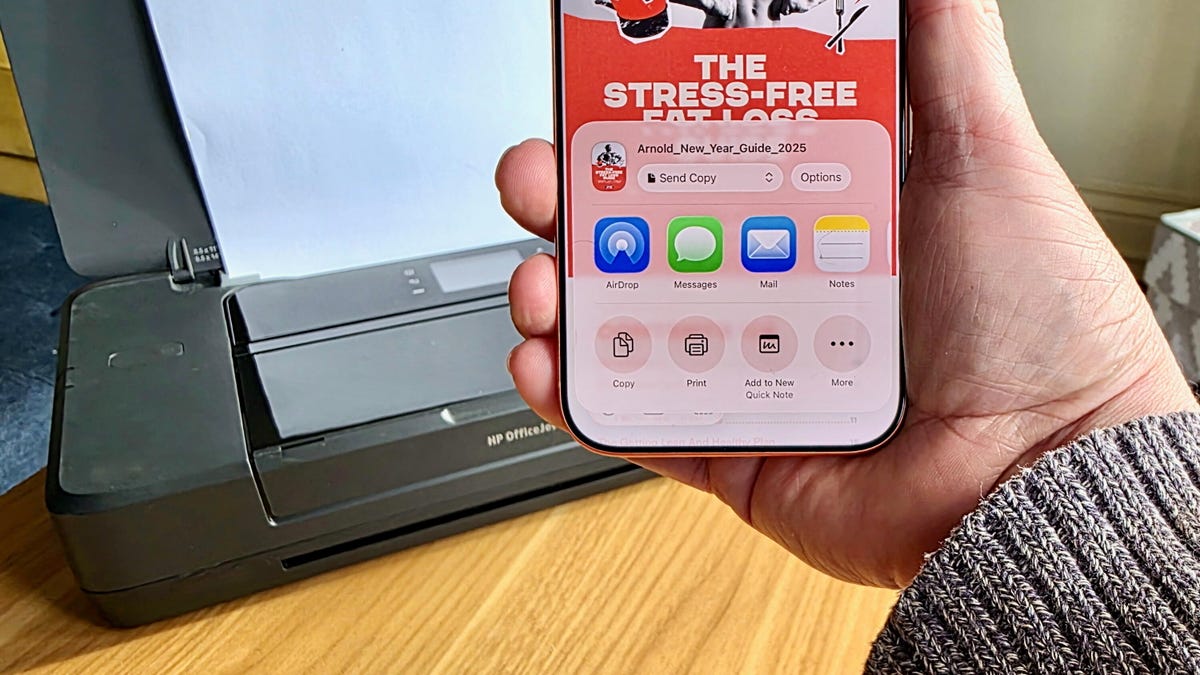
Even though we live in a digital world where you can view and even sign off on important documents using your iPhone, there are still times when it's best to use a printer. Be it shipping labels, luggage tags or a hard copy of an important document, sometimes it's necessary to get these onto paper.
Fortunately, it's pretty easy to print a PDF from your iPhone, as long as you have access to a wireless or AirPrint-compatible printer. Most popular printer models are already AirPrint-capable, but if you want to make sure your printer is compatible, you can look it up on Apple's support page. And even if you have an older printer that doesn't support AirPrint, you might still be able to use your iPhone to print just like you would with a computer.
Here, we'll guide you through how to print from a web page or email. If you just want to save a document as a PDF to share or print later, we'll walk you through that step as well.
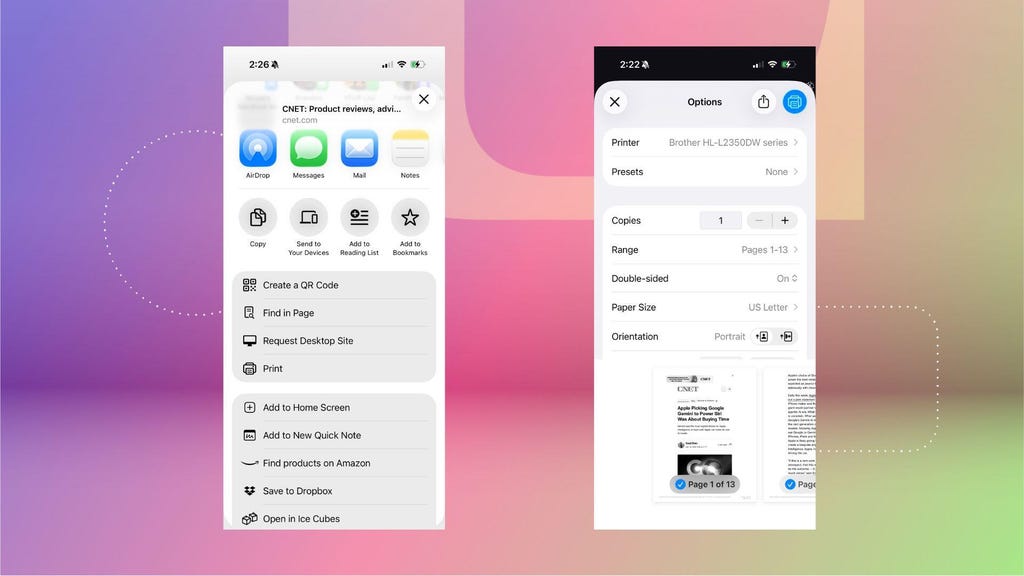
In a web browser or in the Files app, you can launch the Share menu in order to access the Print option. Selecting it will let you choose an AirPrint-enabled printer that's set up on your network. Nicole Lee/CNET
Printing from a web page or the Files app
When printing a document viewed inside your Files app or from a web page, the steps are largely the same. First, open the PDF or web page you would like to print. On Safari, tap the triple-dot icon on the right, next to the URL bar, then tap Share. On Google Chrome, you'd tap the Share icon -- it looks like a square with an arrow pointing up -- to the right of the URL bar instead. And in the Files app, tap the Share icon after opening the document. The Share menu will pop up. Scroll down, and you'll see the Print option.
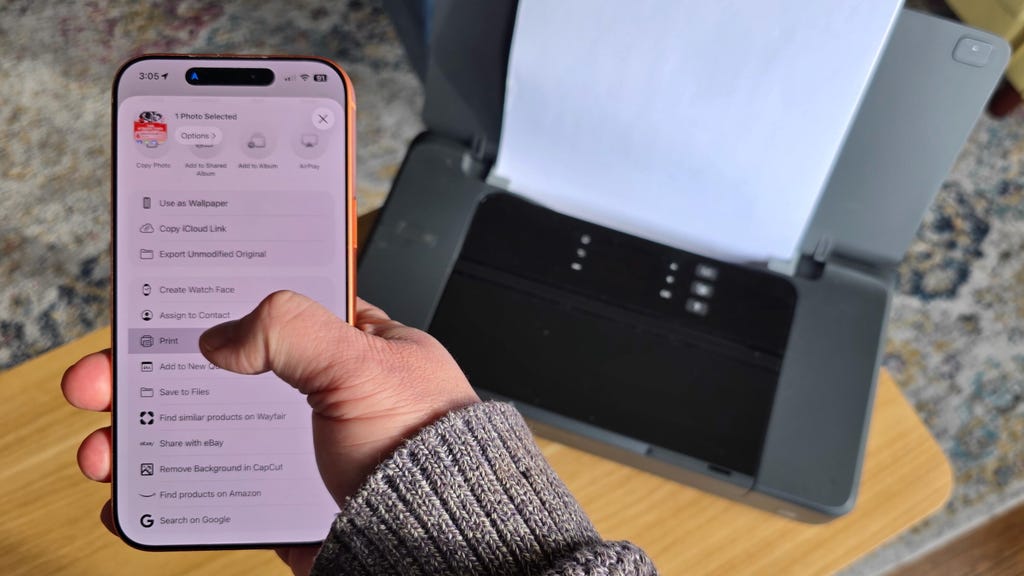
The Share menu includes a Print button, which lets you send a document straight to the printer. Patrick Holland/CNET
Select Print to open the Printer Options menu. You should then be able to select your printer, choose your printer settings and then print the page out by hitting the printer icon on the top right.
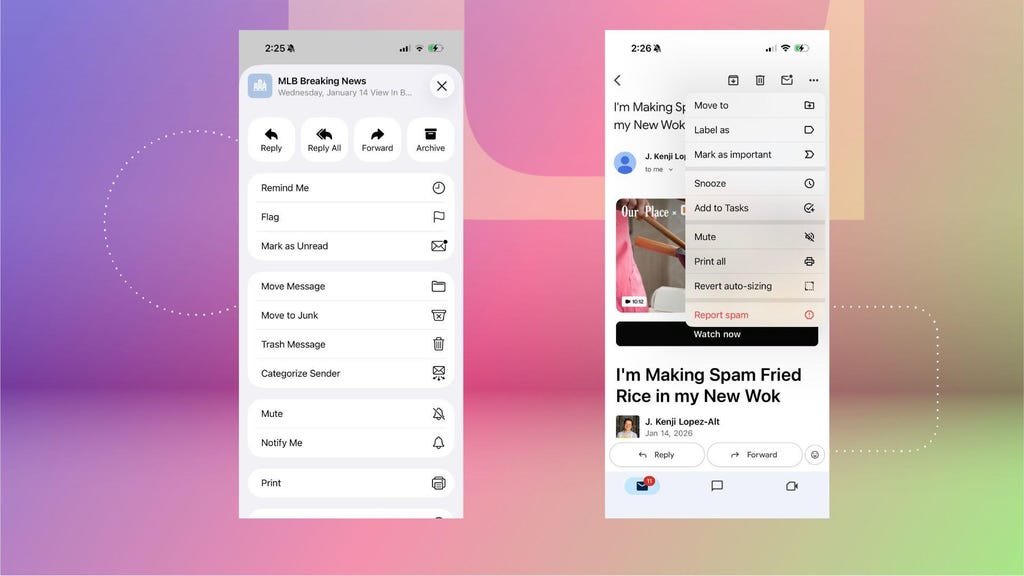
The Print option is in slightly different places for Apple Mail (left) and Gmail on iOS. Nicole Lee/CNET
Printing from email
Open up the email you'd like to print. If you're using Apple Mail, you would then select the Reply button (the curved arrow icon) and scroll all the way down to select Print. If you're using Gmail instead, you'd tap the three dots icon on the upper right corner and then select the Print all option.
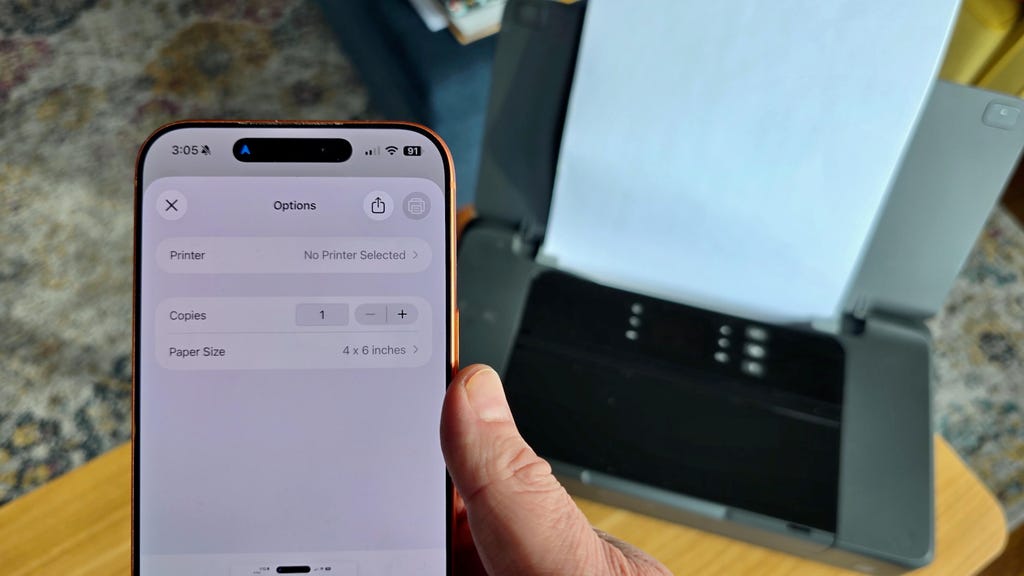
An AirPrint-enabled printer should appear on this screen. If your printer doesn't support AirPrint, an iOS app from your printer's manufacturer may help you connect it. Patrick Holland/CNET
Saving a web page or email as a PDF
Be it a web page or email, you can choose to save the document as a PDF instead of printing it. When you're on the Printer Options page, instead of hitting the printer icon, you would select the Share icon next to it. After that, simply select Save to Files to save the web page or email as a PDF. If you want to retrieve that saved PDF, just launch the Files app, and you should see it there.
In the event your printer doesn't include AirPrint, you might still be able to print a PDF from your iPhone. HP, Canon and other printer companies offer their own iOS apps that can assist in sending documents to printers that do not support AirPrint. While many of the above steps will be similar, you'll want to follow the instructions provided by the manufacturer where they diverge. For instance, for printers set up with the HP app, you'll tap the Share icon and then tap Print with the HP app in order to send a document to the printer.