Search

Image Credits:Smith Collection/Gado / Contributor (opens in a new window) / Getty Images
Many users are switching to Claude following a string of controversies surrounding ChatGPT and its parent company, OpenAI.
The tipping point came after Anthropic, the company behind Claude, refused to allow the Department of Defense to use its AI models for mass domestic surveillance or fully autonomous weapons. In response, President Trump ordered all federal agencies to stop using Anthropic’s products, and Defense Secretary Pete Hegseth announced plans to designate the company a supply-chain threat.
Hours later, OpenAI announced its own agreement with the Pentagon, claiming to include safeguards, but the deal has still sparked widespread debate over privacy and the ethical use of AI.
As a result, Claude has surged to the top of the free app rankings in Apple’s US App Store, overtaking ChatGPT. According to Anthropic, daily signups have hit record highs, free users have jumped by more than 60% since January, and paid subscribers have more than doubled this year.
For many users, the recent controversy has made Claude a compelling alternative to ChatGPT. If you’re considering making the switch, this guide will walk you through transferring your data and closing your ChatGPT account.
How to export your data from ChatGPT
Breaking up with ChatGPT shouldn’t mean losing years of digital memory. Instead of starting from scratch with a new AI assistant, you can transfer your data to Claude so it can get up to speed on your preferences right away.
There are a few ways to do this. One place to start is Settings. From there, you go to Personalization and find the Memory section. Select “Manage” and review your stored information, updating anything that no longer accurately reflects your preferences. Once everything is up to date, copy the content you want to keep.
Disrupt 2026: The tech ecosystem, all in one room
Your next round. Your next hire. Your next breakout opportunity. Find it at TechCrunch Disrupt 2026, where 10,000+ founders, investors, and tech leaders gather for three days of 250+ tactical sessions, powerful introductions, and market-defining innovation. Register now to save up to $400.
Save up to $300 or 30% to TechCrunch Founder Summit
1,000+ founders and investors come together at TechCrunch Founder Summit 2026 for a full day focused on growth, execution, and real-world scaling. Learn from founders and investors who have shaped the industry. Connect with peers navigating similar growth stages. Walk away with tactics you can apply immediately
Offer ends March 13.
Alternatively, you can export your entire chat history. Head to Settings, select Data Controls, and choose “Export Data.” ChatGPT will compile your chat records into text or JSON files and email them to you. (Be aware that this may take a while if you have a lot of history.)
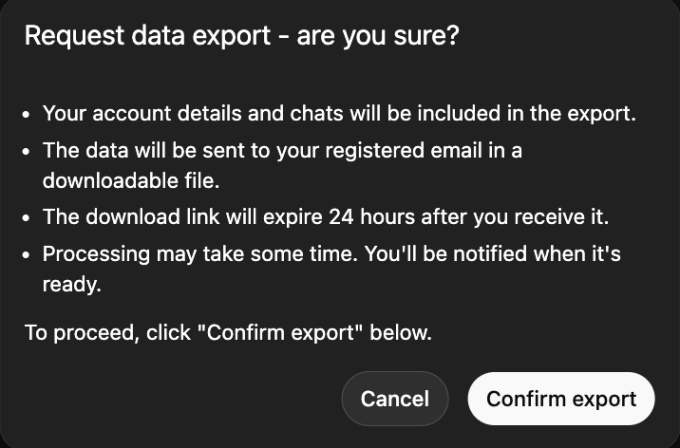
Image Credits:Screenshot of ChatGPT Settings by TechCrunch
You can also take a manual approach by copying key conversations from your history or asking ChatGPT to summarize your main preferences, frequently discussed topics, and any custom instructions you use.
Import your data into Claude
Once you’ve gathered your data, transferring it to Claude is straightforward.
Open Claude, go to Settings, then Capabilities, and make sure Memory is turned on. (You’ll need to sign up for the Pro, Max, Team, or Enterprise plan to enable this feature.) Then, start a new conversation and use a prompt like, “Here’s some important context I’d like you to remember. Update your memory about me with this.” Then paste your information or summaries directly into the chat.
For exported chat files, don’t paste raw logs. Instead, prompt Claude with something like: “Review this and summarize my key preferences.”
We also recommend taking a moment to verify with Claude that your information has been saved accurately. You can always update your preferences as they change.
Permanently delete your ChatGPT account
To make a complete break from ChatGPT, simply canceling your subscription isn’t enough to remove your data.
Here’s what to do:
- Go to Settings, then Personalization, and select Memory.
- Delete any stored memory or personalization settings.
- For added assurance, type “Delete all my memory and personalized data” as a final chat command.
- Then navigate to your account management settings to delete your account entirely.

-
 C114 Communication Network
 -
 Communication Home