Search

Andrey Matveev/Unsplash
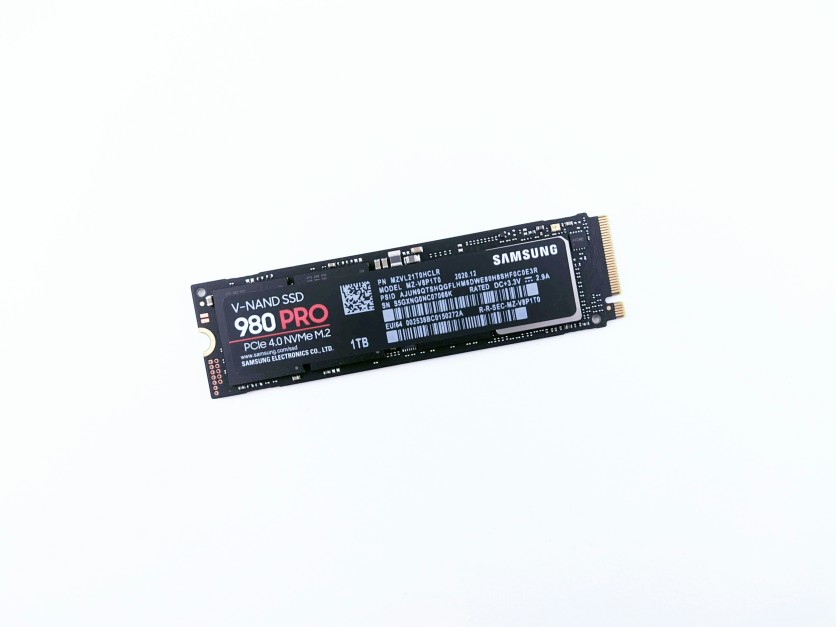
Upgrading to NVMe SSDs transforms PC storage performance, slashing Windows boot times from 45 seconds on traditional HDDs to just 8–12 seconds. Game load screens also see dramatic reductions, with titles like Cyberpunk 2077 loading 70% faster, creating smoother gameplay and reducing texture pop-ins. Beyond raw speed, NVMe SSDs deliver high sustained read/write throughput and support modern PCIe Gen4 and Gen5 interfaces, making them essential for gamers, content creators, and power users seeking responsive systems.
Installing an NVMe SSD is straightforward but requires attention to M.2 slot placement, thermal pad application, and BIOS recognition. Drives like the Crucial T705 or Samsung 990 Pro reach 14,500MB/s on Gen5, supporting massive game libraries without defragmentation. Whether upgrading for gaming, editing, or general productivity, NVMe SSDs offer a noticeable boost over SATA SSDs and mechanical drives, enhancing both load times and overall system responsiveness.
NVMe SSD Upgrade Compatibility and Slot Selection
Choosing the right slot and ensuring motherboard compatibility are critical for NVMe SSD upgrades. Modern motherboards typically feature multiple M.2 slots, but not all offer full PCIe x4 bandwidth. Primary slots (M.2_1) are CPU-direct, avoiding DMI bottlenecks and providing maximum throughput, while secondary slots (M.2_2) often share lanes, halving speeds.
- Check the motherboard manual for M.2 slot wiring and length compatibility (2242/2260/2280).
- Ensure standoffs and heatsinks are installed; peel protective films from thermal pads before seating the drive.
- Primary slots near the CPU minimize trace length for higher performance; secondary slots suffice for secondary game storage.
- BIOS verification post-install confirms PCIe link negotiation (Gen4 x4 or fallback to Gen3).
- Thermal considerations: Proper heatsinks prevent throttling above 70°C, maintaining performance during sustained loads.
PC Storage Speed Through PCIe Generations Explained
NVMe SSD performance scales dramatically across PCIe generations. Gen3 drives like the Samsung 970 Pro reach ~3,500MB/s sequential reads, while Gen4 SSDs like the 990 Pro hit 7,450MB/s. Gen5 drives such as Crucial T705 achieve 14,500MB/s, benefiting large 4K or 8K workloads and reducing game load times by up to 70%.
- PCIe Gen4 drives deliver ~5x faster indexing on large archives versus SATA SSDs.
- Random 4K read/write operations make the OS feel highly responsive, outperforming HDDs by 50x in QD32 tests.
- RAID0 arrays with dual Gen4 drives can double sequential throughput, though controller overhead reduces real-world gains by ~20%.
- DRAM caches on NVMe SSDs maintain high sustained write speeds; QLC drives may slow after exhausting cache.
- Gaming and creative workloads benefit most from Gen4/Gen5 sequential speeds, while daily apps are improved by faster random access.
Quick Tips:
- Is the NVMe SSD upgrade worth the cost? Yes—7GB/s vs 550MB/s drastically reduces load times.
- PCIe Gen3 vs Gen4 differences? Gen4 doubles sequential speed and boosts random 4K performance by ~50%.
Read more: Ethernet vs Wi‑Fi Gaming: Which Online Gaming Connection Wins for Low Latency Internet?
SSD Installation Step-by-Step Process
Installing an NVMe SSD is straightforward for first-time builders. The process requires powering off, discharging static, locating the M.2 slot, and securing the drive at a 30° angle using the standoff screw.
- Remove any pre-installed heatsinks or thermal films before insertion.
- Align notched gold contacts and gently press until horizontal; tighten screw to ~0.2Nm.
- Verify BIOS detection on power-on and initialize the drive in Windows Disk Management with GPT partitioning.
- Cloning OS drives: Use Macrium Reflect or similar tools to migrate existing Windows installations without reinstalling software.
- Secondary drives: Format and assign drive letters via Disk Management for games or media libraries.
- Enable TRIM automatically (Windows 10+) or verify with fsutil behavior query DisableDeleteNotify.
Quick Tips:
- First-time installation safe? Yes—slot/screw process takes under 5 minutes, no cables required.
- OS reinstallation needed? No—cloning preserves boot drives and installed programs.
NVMe SSD Maintenance, Migration, and Capacity Planning
Upgrading to NVMe SSDs isn't just about speed; planning for migration, capacity, and long-term reliability ensures smooth performance. Proper cloning, firmware management, and airflow keep drives running optimally, while choosing the right size and endurance supports years of gaming, content creation, or productivity. Understanding maintenance requirements and case compatibility prevents thermal throttling and extends drive lifespan.
- Cloning and Migration:
- Use Macrium Reflect (free) or Acronis True Image (paid) for bit-perfect OS and software cloning.
- Create bootable USB media; disable Secure Boot if necessary before swapping drives.
- Post-clone, validate with Windows Disk Management and CrystalDiskMark to ensure correct recognition and speed.
- Use firmware tools like Samsung Magician or Crucial Storage Executive to optimize performance and manage updates.
- Capacity Planning and Endurance:
- 2TB drives offer a balance of cost (~$120) and endurance (~1,200 TBW), enough for 100+ AAA games.
- 4TB Gen4 drives cost under $0.08/GB, ideal for large libraries or media archives.
- RAID1 configurations provide redundancy for critical OS or data drives, increasing reliability.
- Gen5 drives support 8TB+ storage needs while maintaining endurance for gaming and creative workloads.
- Reliability, Maintenance, and Case Compatibility:
- Air-cooled setups with proper standoffs maintain temperatures under 70°C; dust buildup is the main concern.
- AIO or active SSD heatsinks improve thermal performance in tight or small-form-factor cases.
- NVMe drives are mostly maintenance-free; occasional dusting and firmware updates suffice.
- Ensure M.2 slot placement near GPUs or chipsets doesn't restrict airflow, and maintain positive case pressure for consistent cooling.
Maximize Load Times with NVMe SSD Upgrades
Upgrading to NVMe SSDs is one of the most effective ways to enhance PC responsiveness. From drastically reduced Windows boot times to faster game loading and smoother content creation, NVMe drives outperform HDDs and SATA SSDs across the board. Proper slot selection, PCIe generation awareness, and thermal management ensure the drives deliver consistent performance.
Cloning tools make migration seamless, while capacity and endurance planning future-proof storage for years. Whether for gaming, video editing, or general productivity, NVMe SSD upgrades redefine the PC experience, giving faster, smoother, and more reliable storage for modern workloads.
Frequently Asked Questions
1. Do I need PCIe Gen4 or Gen5 SSDs for gaming?
Gen4 is sufficient for most gaming needs, cutting load times significantly compared to SATA. Gen5 offers higher sequential speeds, beneficial for very large open-world games or content creation. Random 4K performance is similar between Gen4 and Gen5 for standard tasks. Both outperform HDDs and SATA SSDs by a large margin.
2. Can I clone my Windows installation to a new NVMe SSD?
Yes, cloning software like Macrium Reflect or Acronis True Image allows safe migration. The OS and programs remain intact without reinstallation. Bootable USB media helps perform the clone in a controlled environment. Post-clone, ensure BIOS detects the new NVMe drive.
3. How long do NVMe SSDs last?
Most consumer NVMe drives have endurance ratings of 600–1,200 TBW for 2TB drives. This translates to 10+ years of typical gaming or productivity use. Wear leveling and DRAM cache help maintain consistent speeds. Gen5 and enterprise models offer even higher endurance for professional workloads.
4. Do I need a heatsink for my NVMe SSD?
High-performance Gen4/Gen5 drives benefit from thermal pads or heatsinks to prevent throttling above 70°C. Many drives ship with pre-installed heatsinks; otherwise, motherboard-integrated shields are sufficient. Low-power drives may run fine without additional cooling. Proper airflow in the case further reduces heat buildup.
Read more: Advanced Heat Resistant Materials are Revolutionizing Electronics Manufacturing

-
 C114 Communication Network
 -
 Communication Home