Search


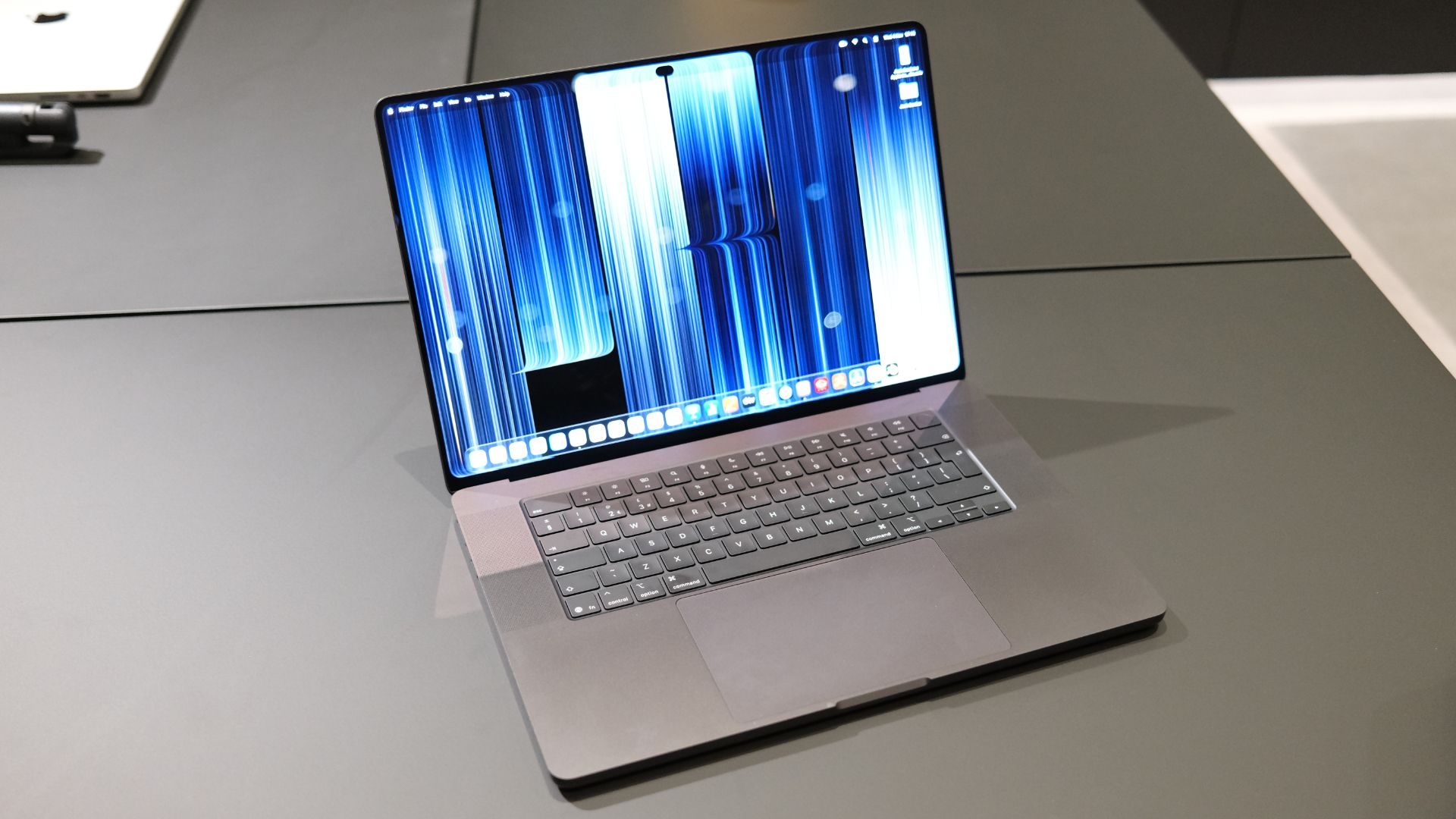
(Image credit: Future | Max Freeman-Mills)
Apple has had a busy couple of months. Not only did it announce its first folding phone, the iPhone Duo, but it also revealed its first smart display, the HomeView, its first iPad mini with an OLED display. There was also its first touchscreen Mac, of course.
Safe to say, then, that the new CEO, John Ternus, has done everything he can to hit the ground running since taking over the reins from Tim Cook at the beginning of September.
There’s plenty to say about the iPhone Duo and HomeView, but the touch-enabled MacBook has its own stories to tell too. It had been rumoured for years, despite Steve Jobs famously saying that touch on a Mac would be “ergonomically terrible”, yet it isn’t just the ability to touch the screen with your finger that has captured attention.
How to turn off touch on the MacBook Pro with PROLED XDR Display
Apple also reintroduced the illuminated logo on the lid in this model and added an OLED display for the first time. Yes, yes, another first.
If you aren’t a fan of the light-up logo, which was last seen on a MacBook Pro in 2016, there is a way to switch it off, though you will have to do it using a Terminal command, so it’s a little trickier than a quick toggle.
And if you aren’t a fan of touch, we’ve got good news for you, too – there are MacBook Pro models available that don’t have the PROLED XDR Display’s touch capabilities (and you’ll save money buying them).
However, if you want the new design without the notch, the punchy and vibrant OLED screen, and you still don’t want to be able to touch the screen, there’s still good news. You can turn touch off, and it’s easier than running a Terminal command.
As spotted by 9to5Mac, to turn off touch on the MacBook Pro with PROLED XDR Display, or customise it, head to System Settings > Accessibility > Physical and Motor section > Touch. If you toggle on “Ignore Touch Gestures”, the touch capabilities will turn off and ignore all touches unless you turn it back on.
Seems a waste, but there you go.

-
 C114 Communication Network
-
 Communication Home