

 Search

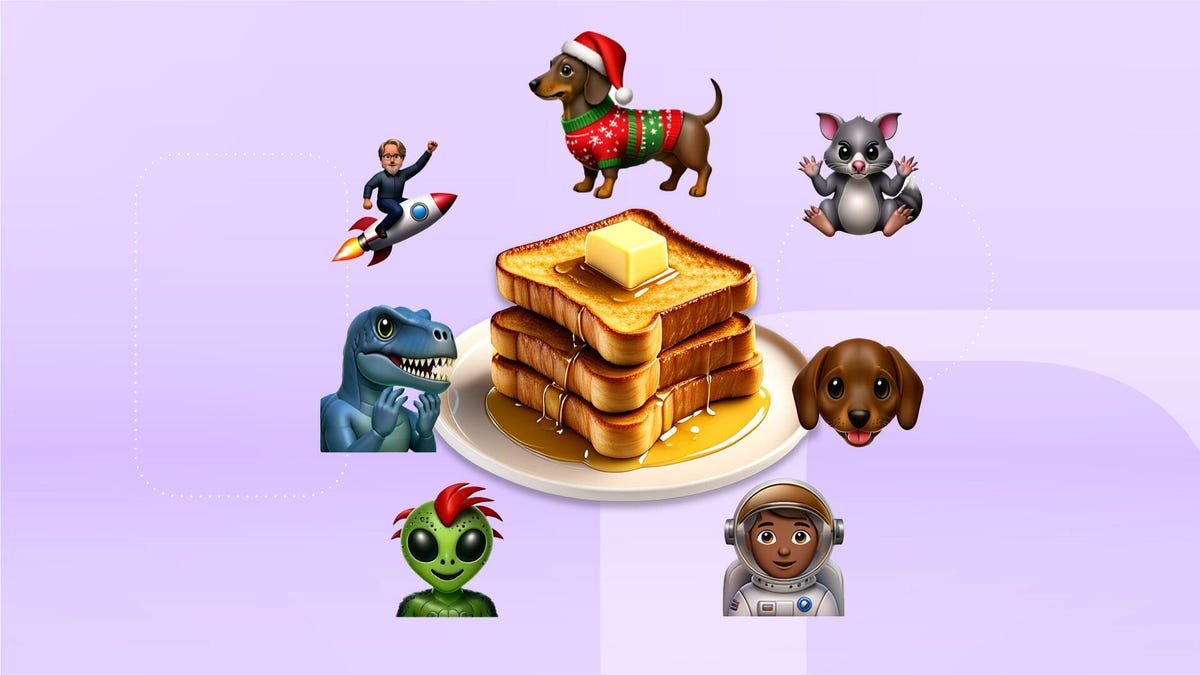
Apple will likely add new emoji to your iPhone when the company releases iOS 26.4. Those new emoji could include an orca, a distorted smiley face and more. According to Emojipedia, there are 3,953 emoji with more on the way. The current list of emoji include smileys, sports players, weather conditions and flags. But there's no emoji for a dog wearing pajamas, a plate with burgers and fries and many other things. But if you have Genmoji on your iPhone you can create these emoji and many more.
Apple released iOS 18.2 in 2024 and the company introduced its own emoji generator, called Genmoji, to Apple Intelligence-capable iPhones at that time. The Unicode Standard, a universal character encoding standard, is responsible for creating new emoji, and approved emoji are added to all devices once a year. With Genmoji, you don't have to wait for new emoji to appear on your iPhone each year. You can just create them as you need them.
Read on to learn how to use Genmoji on iPhone to create your own custom emoji. Just note that only iPhones with Apple Intelligence, like the iPhone 17 lineup, can use Genmoji at this time.
How to make custom emoji
1. Open Messages and go into a chat.
2. Tap the plus (+) button next to your text box.
3. Tap Genmoji.
You can then type a description of an emoji into the text box near the bottom of your screen and tap the check mark on your keyboard to enter that description into Genmoji. You can also tap different suggestions and themes that are right above the text box. And with iOS 26 or later, you can also combine and use emoji to create others rather than describing a new emoji or using suggestions.
Your iPhone will generate a series of new emoji for you to pick from according to your description, and you can swipe through these new emoji. When you find the one you want, tap Add in the top right corner of your screen and the new emoji will be available to use as an emoji, tapback or a sticker. Now you don't have to wait for the Unicode Standard to propose, create and bring new emoji to devices.
For more iOS news, here's what to know about iOS 26.3.1 and iOS 26.3. You can also check out our iOS 26 cheat sheet for other tips and tricks.