Search

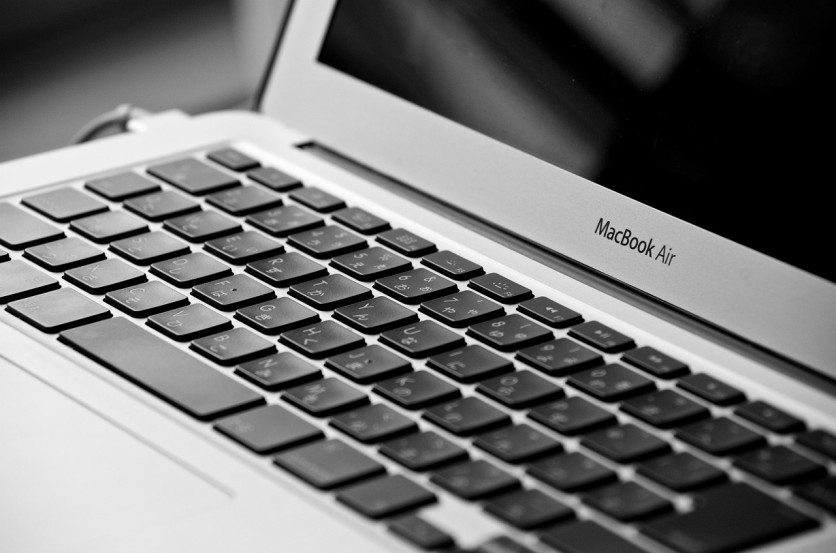
Learn screen recording Mac with QuickTime screen record on MacBook Air with this step-by-step Mac tutorial video guide. Pixabay
Screen recording on a MacBook Air is a valuable tool for creating tutorials, sharing gameplay, or capturing video calls. When combined with audio, it enhances the content by providing clear instructions or commentary, essential for effective communication.
This article explains the easiest ways to record the screen on a Mac with audio, focusing on QuickTime Player, macOS built-in tools, and tips for producing high-quality Mac tutorial videos.
What Is Screen Recording on Mac?
Screen recording on Mac is the process of capturing video of the computer's display. This is useful for demonstrating software use, troubleshooting, or recording online content. By adding audio, users can narrate their actions or include system sounds, making the recording more engaging and informative.
What Is the Easiest Way to Screen Record Mac with Audio?
QuickTime Player is the built-in, user-friendly tool for screen recording Mac. It offers straightforward options to record the entire screen or just a selected portion. To include audio, users can integrate either the microphone input or system sound with additional setup.
Steps for QuickTime Screen Recording with Audio:
- Open QuickTime Player from the Applications folder.
- From the File menu, select "New Screen Recording."
- Before starting, click the dropdown arrow next to the record button to choose the audio source, select "Built-in Microphone" for external sound capture such as voice narration.
- To record the screen, click the record button. Users can click anywhere to record the full screen or drag to select a specific window or region.
- Click the stop button in the menu bar when finished. The recording will open automatically for review.
- Save the file by choosing File > Save and selecting the desired location.
Recording internal audio (system sounds) directly with QuickTime requires additional software like BlackHole or Loopback to route system audio into QuickTime since macOS does not natively allow internal audio capture.
How to Record Internal Audio on MacBook Air
To capture internal audio during screen recording on a MacBook Air, virtual audio drivers such as BlackHole are necessary. These are free software tools that create virtual audio interfaces to channel system sounds into recording applications.
Configuring internal audio recording involves:
- Installing the BlackHole driver.
- Setting the Mac's Audio MIDI Setup to create a multi-output device combining both speakers and BlackHole.
- Selecting BlackHole as the audio input in QuickTime's screen recording options.
This setup allows the screen recording to include all sounds coming from the Mac, including music, alerts, and app audio.
Can Mac Tutorial Videos Be Recorded with Audio?
Yes, Mac tutorial videos typically benefit from including audio commentary to explain steps or provide context. Recording with a high-quality external microphone improves voice clarity. Proper microphone selection and quiet environments reduce background noise and enhance professionalism.
Tips for creating a Mac tutorial video with audio:
- Plan the tutorial content to ensure smooth, clear explanations.
- Use headphones to prevent audio feedback during recording.
- Test audio levels beforehand.
- Speak slowly and clearly for better comprehension.
- Use editing software to trim unnecessary content and add callouts or captions.
Read more: How to Migrate MacBook Air: Step-by-Step Guide Using Move to Mac Assistant and Time Machine Restore
How to Crop or Select a Portion of Your Mac Screen to Record
macOS has a built-in screen capture utility accessible via Command + Shift + 5. This feature allows more control over what area is recorded:
- The user can select the entire screen, a specific window, or a custom area.
- Options include recording with or without audio and setting timers for delayed recording.
- The toolbar also allows saving screenshots and quick access to screen recording controls.
Selecting the right area helps focus the tutorial, avoiding distractions and keeping file sizes manageable.
Best Settings to Save and Share Screen Recording
When saving QuickTime recordings, users should consider file format and resolution for the intended audience:
- QuickTime saves files as .mov by default, which is widely compatible and high quality.
- For web sharing, converting to compressed formats like MP4 using video software may be beneficial.
- Record in the native screen resolution for clarity but balance against file size.
- Naming files logically helps in organizing tutorial video libraries.
- Troubleshooting Common Issues in Mac Screen Recording with Audio
Some frequent issues include:
- Audio not recording: Check microphone permissions under System Preferences > Security & Privacy > Microphone.
- No internal audio: Ensure virtual audio drivers are installed and configured correctly.
- Screen recording controls or shortcuts not working: Restart the Mac or update macOS to the latest version.
- Sync problems between audio and video: Use post-production software to adjust timing if necessary.
Following these solutions can help ensure smooth recording experiences.
Recording the MacBook Air screen with audio, especially using QuickTime Player, is straightforward with the right setup. Incorporating virtual audio drivers allows internal sound capture, crucial for full multimedia tutorials.
Users looking to create professional Mac tutorial videos should focus on clear audio input, selective screen recording, and proper file saving techniques. With these tips, screen recording Mac users can produce engaging, informative videos for educational or entertainment purposes.
Frequently Asked Questions
1. Can you edit screen recordings directly in QuickTime on Mac?
QuickTime Player allows basic editing features such as trimming the beginning or end of a screen recording, splitting clips, and rearranging segments. However, for advanced editing like adding text, transitions, or overlays, dedicated video editing software is recommended.
2. Is it possible to record screen and webcam simultaneously on MacBook Air?
The built-in QuickTime Player does not support simultaneous screen and webcam recording. To achieve this, users can utilize third-party applications like OBS Studio or ScreenFlow, which allow combining webcam feed with screen capture for more dynamic tutorial videos.
3. How can background noise be minimized during audio recording on Mac?
Using an external microphone with noise-canceling features helps reduce ambient sounds. Additionally, recording in a quiet environment, enabling noise reduction settings in audio software, and using pop filters or foam covers on microphones enhance audio quality.
4. What are alternatives to QuickTime for screen recording on Mac with audio?
Several third-party apps like OBS Studio, ScreenFlow, and Camtasia provide advanced screen recording features, including multiple audio source capture, video editing, and higher customization options. These tools are ideal for users needing more professional functionality beyond QuickTime's capabilities.
Read more: How to Check MacBook Air Battery Health: Monitor Cycle Count and Battery Status in macOS

-
 C114 Communication Network
 -
 Communication Home