

 Search

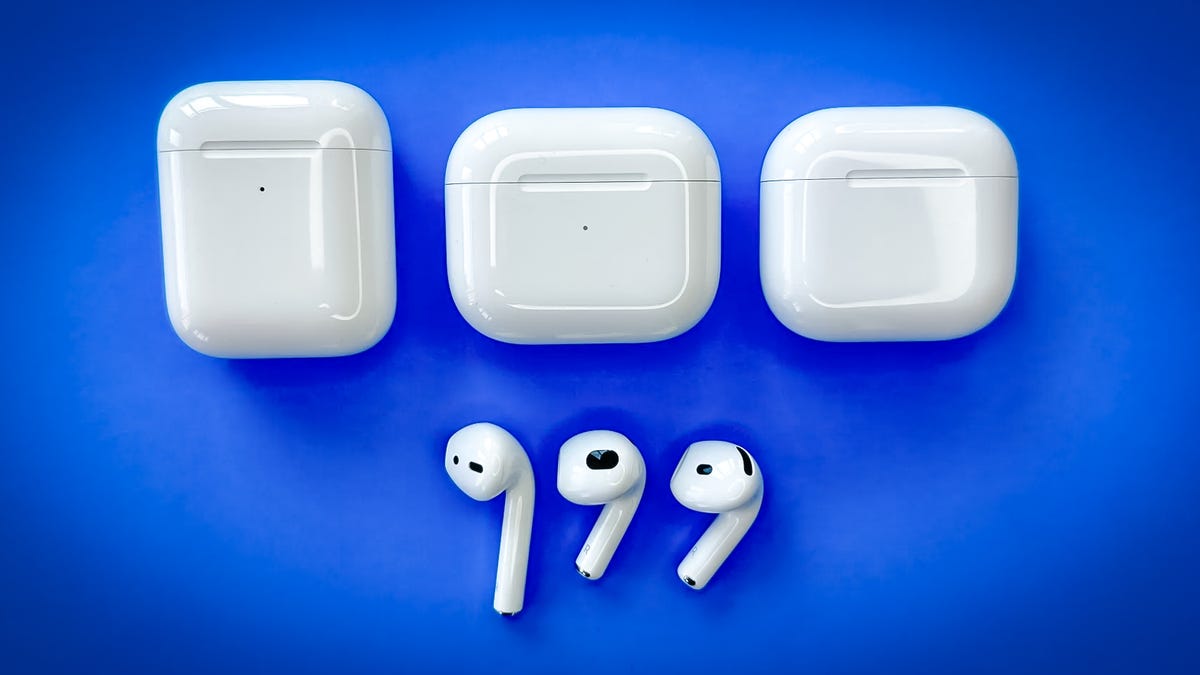
There are few things more frustrating than sitting down for a long commute, flight or a quiet evening of phone scrolling and discovering one of your AirPods isn't working. But an unresponsive AirPod can be easy to fix. It might not even need a full reset.
Start with the basics. Make sure your iPhone's Bluetooth is turned on. It's easy to have accidentally turned it off when you were trying to adjust something else. Simply swipe down from the top-right corner of the screen to access the Control Center. Ensure the Bluetooth icon is blue; if not, tap it to activate Bluetooth. Hopefully, this fixes the issue.
Next, and before proceeding with the rest of this guide, ensure your AirPods are charged. Place them both into their case, then open the case's lid while holding it directly next to your iPad or iPhone. A window will appear showing the battery status of each earbud and the case. You can also add the battery widget to your home screen for quick access. It's possible that one of the AirPods didn't get fully charged the last time you put them away.
Last thing to check before we dive into the other fixes: Make sure your iPhone's software is up to date. Launch Settings, tap General and select Software Update.
How to fix one AirPod that's not working
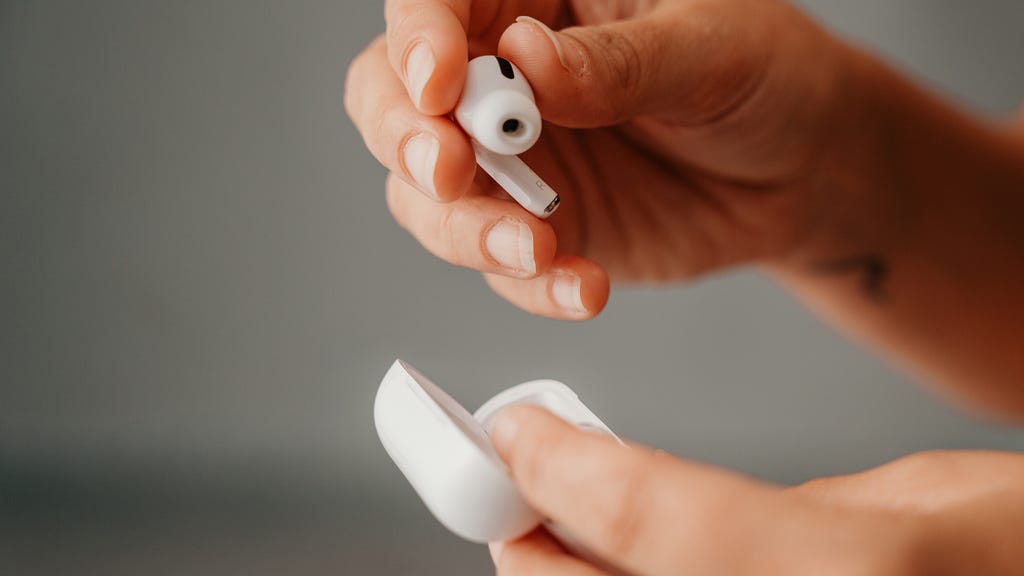
Getty Images/Cameron Prins
1. Put both AirPods back in their case and make sure they're charging. Let them charge for 30 seconds.
2. Open the case's lid near your iPhone or iPad, and wait for the AirPods to pop up on screen.
3. Put the AirPod that isn't working in your ear, and leave the other AirPod in its case with the lid closed.
4. Try playing audio to see if the AirPod in your ear is working.
5. If it works, put both AirPods back in their case and repeat steps one and two. Then place both AirPods in your ears to make sure they're working.
How to reset your AirPods
If the above didn't fix the issue, you might need to reset your AirPods.
1. To get started, make sure your AirPods are in their charging case with the lid closed.
2. After 30 seconds, open the lid to connect your AirPods with your iPhone or iPad. Launch the Settings menu on your mobile device and tap Bluetooth.
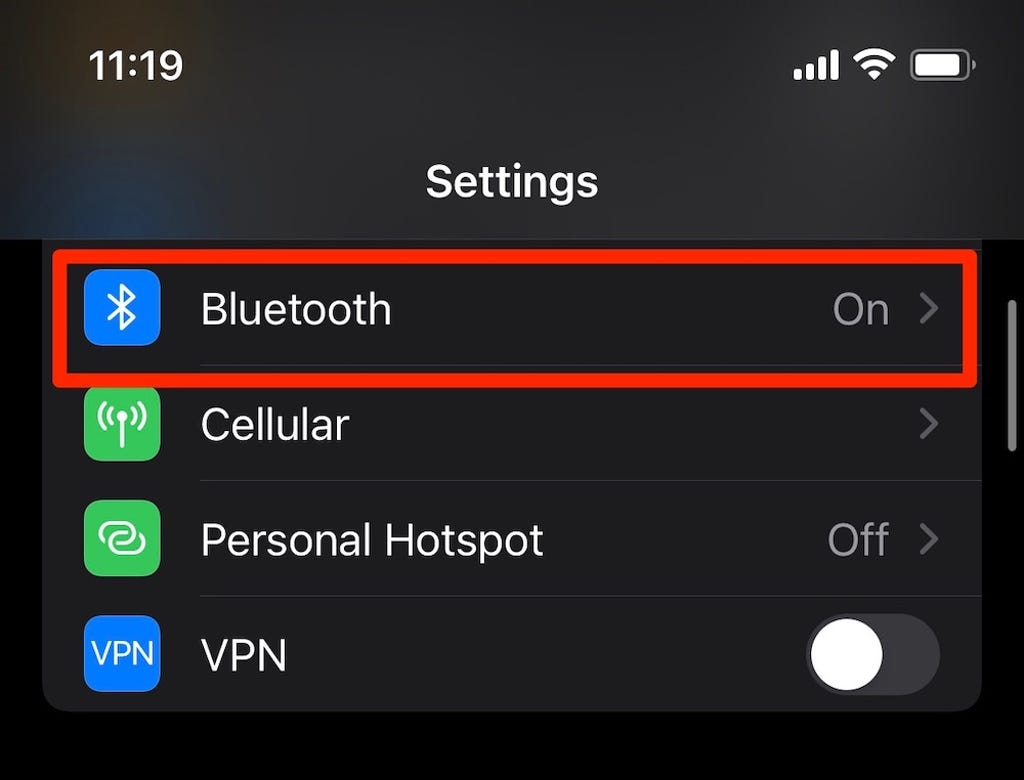
Open the Bluetooth section in your iPhone's Settings menu. Screenshot by Lisa Eadicicco/CNET
3. Find your AirPods in the list of Bluetooth devices and tap the i symbol next to it.

You can tap the i symbol to get more information about your AirPods or reset them. Screenshot by Lisa Eadicicco/CNET
4. Choose Forget this device. You may have to scroll down to find this option.

Tap Forget This Device to reset your AirPods. Screenshot by Lisa Eadicicco/CNET
5. Once your AirPods are forgotten, open the charging case's lid and hold down the button on the back for about 15 seconds. The light on the front should flash white. Since the AirPods 4's case doesn't have a button, this step is a little different for that specific model. First, open the lid and double-tap the front of the case while the light is glowing. Then, double-tap again when the light flashes white, and double-tap it yet again when you see the light flashing faster. When the light turns amber, the AirPods are ready to connect to your phone again.
6. Now, hold your AirPods in their charging case with the lid open near your iPhone or iPad. You should see on-screen instructions for pairing them, just like the first time you set them up.
GIF by Jason Cipriani/CNET
Resetting your AirPods usually fixes this problem. But if you're still experiencing issues with one or both AirPods, check to ensure no debris obstructs the speaker mesh. Check out our guide to cleaning your AirPods for instructions on how to safely sanitize your earbuds and their case.
Looking for more advice? Check out our guide to iOS 18 and our favorite Apple Watch tips and tricks.