

 Search

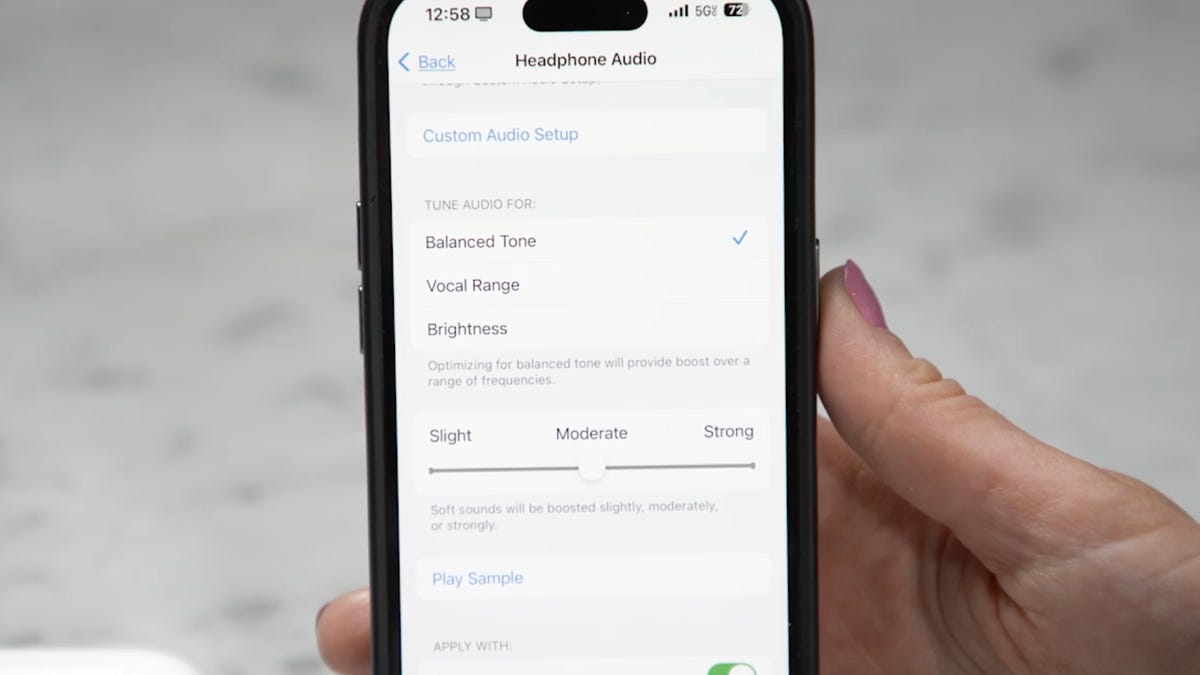
You can improve the audio of your AirPods by changing a few settings in your iPhone. These settings can improve the audio of other Apple headphones as well, including many Beats models. All you need is one of the compatible models, most recent ones will work, as well as a fairly recent iPhone or iPad.
What can these changes do? Well, if you find it difficult to understand others when you're on a phone call or the music just doesn't sound right to you, these settings will let you adjust both. You can also adjust features like Transparency and Adaptive Audio modes, to help tailor the audio to your liking. Your phone will even lead you through these settings to get your headphones customized to your ears and tastes. Here's what you need to know.
Which AirPods settings improve sound?
David Carnoy/CNET
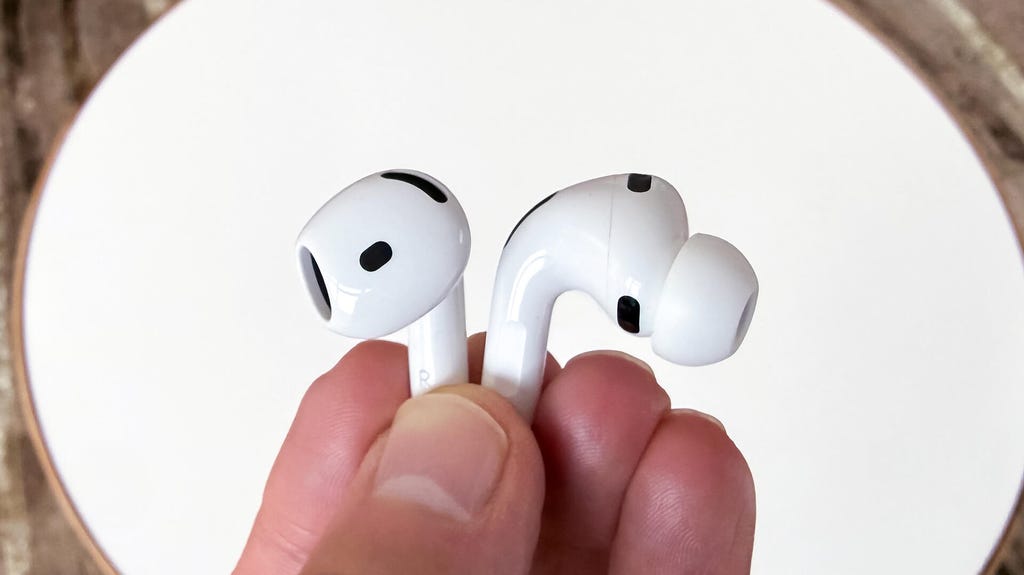
Before we get too far into the specific settings, you need to make sure that your AirPods (and other Apple headphones and earbuds) can support the features we'll be adjusting. The main one is the Headphone Accommodations settings, and is available only on supported headphones like the most recent AirPods, EarPods and Beats. As long as you have iOS 14 and later (or iPadOS 14+), you can use Headphone Accommodations with the following:
- AirPods Pro (all versions)
- AirPods (2nd generation and later)
- AirPods Max (all versions)
- Apple EarPods
- Powerbeats
- Powerbeats Fit
- Powerbeats Pro (all versions)
- Beats Solo Pro
- Beats Fit Pro
Under Headphone Accommodations, you have the option to manually configure AirPod audio settings, but the way we're going to do this is through Custom Audio Setup, which runs a series of listening tests and provides you with suggested settings to configure based on choices you make after listening to a few audio samples.
But before you run the test, you must do a few things:
- Update to the latest version of iOS, especially if you don't see Headphone Accommodations in your settings. Go to Settings > General > Software Update to update to the latest iOS (currently iOS 17.4).
- Turn on Headphone Accommodations. Go to Settings > Accessibility > Audio & Visual > Headphone Accommodations and toggle the feature on.
- Choose how you want Headphone Accommodations to work. At the bottom of the setting's page, you can toggle on your recommended audio settings for phone (phone calls, FaceTime and third-party video calls) and/or media (music, movies, podcasts, audiobooks, Siri and voicemails).
- Next, disable any EQ you might have. Go to Settings > Music > EQ and select Off.
- Pair and connect your compatible headphones to your iPhone. The two devices must be connected for Custom Audio Setup to work.
- Finally, find a quiet environment before taking the test.
Run Custom Audio Setup to your customized AirPods settings
Now that your AirPods or other supported headphones are connected to your iPhone, go to Settings > Accessibility > Audio & Visual > Headphone Accommodations and hit Custom Audio Setup.
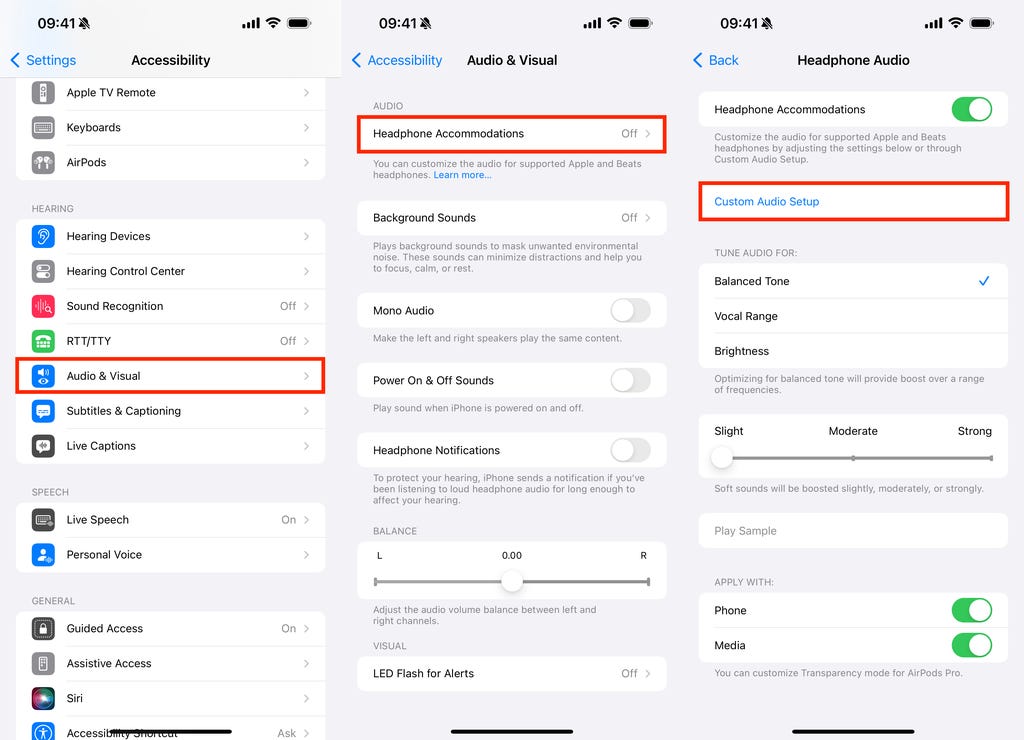
Note: If your headphones aren't connected, this feature won't work. Nelson Aguilar/CNET
First, you'll see a see a brief summary as to what Headphone Accommodations can do for you. You can also upload an audiogram, which shows you how loud sounds need to be for you to hear them, but if you don't have one, you can just skip that section.
The test will start with an audio sample of someone speaking very softly. If you can hear it, hit Yes. If you can't, tap No. The next few audio samples will be of the same music, in different tunings, with soft sounds being boosted. You'll have two versions to choose from each time. If they sound the same, choose the first version. You may also be asked to customize transparency mode (more about this feature below).
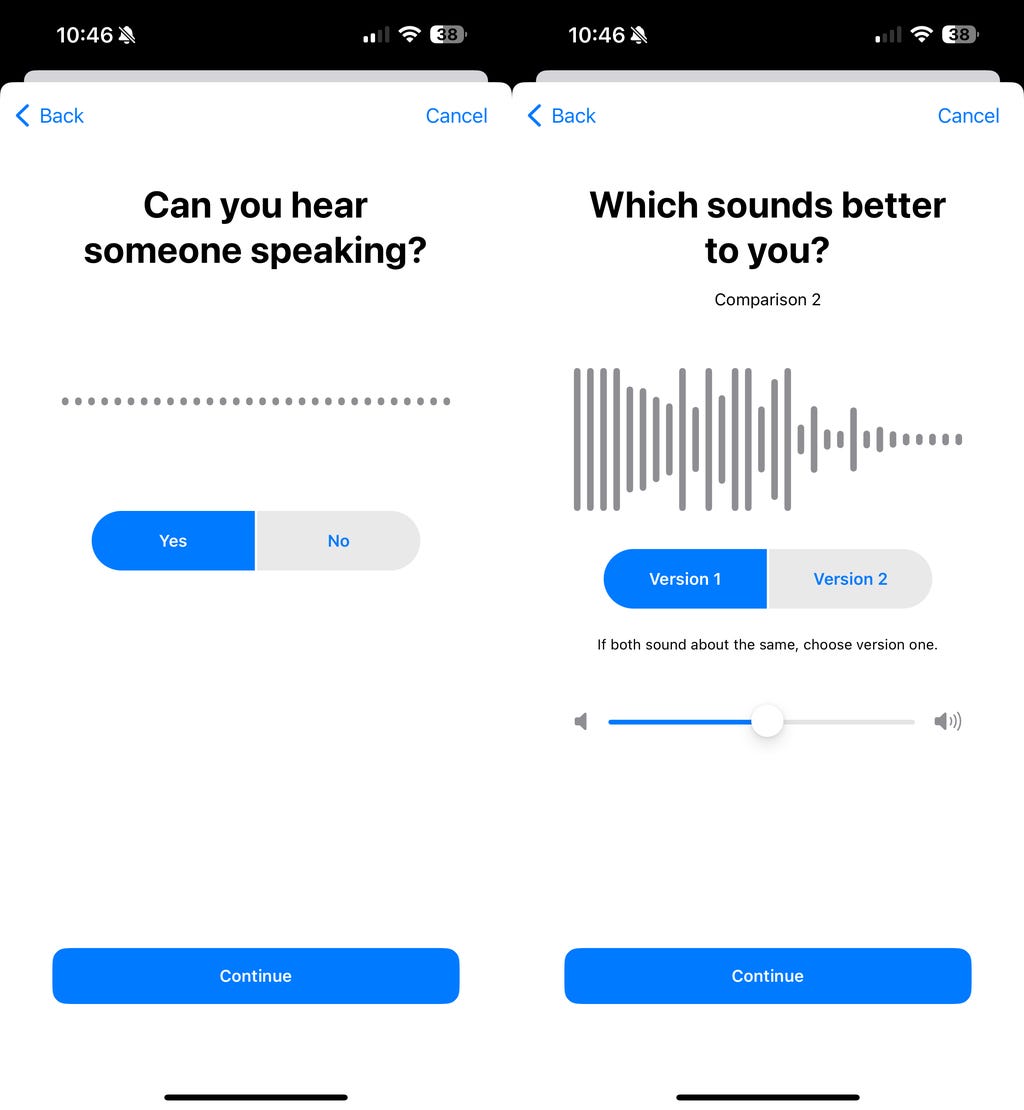
The more issues you encounter with audio, the longer the test will go. Nelson Aguilar/CNET
At the end of the test, the audio settings recommended for you will automatically selected. You may see optimizations for boosting middle frequencies to improve vocal range or boosting of high frequencies for optimizing brightness in the audio you heard. You may also see the boosting of soft sounds, either slightly, moderately or strong.
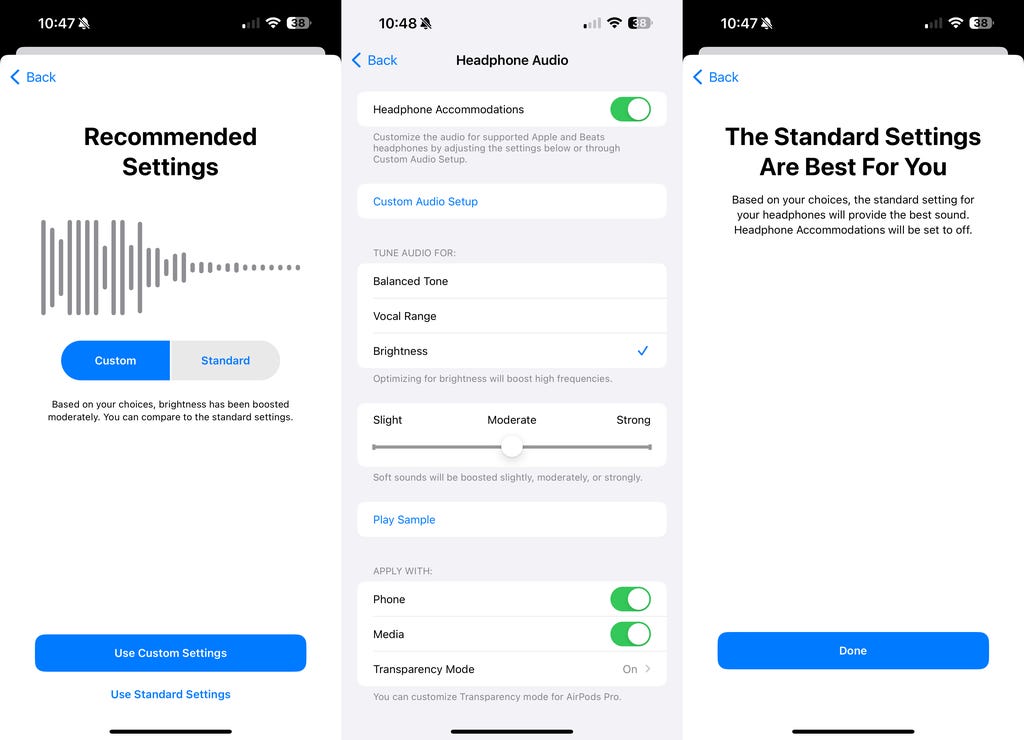
Depending on your choices, the standard settings (left screenshot above) for your headphones may be suggested, which means that the default settings are the best ones available for you. Nelson Aguilar/CNET
AirPod noise canceling modes
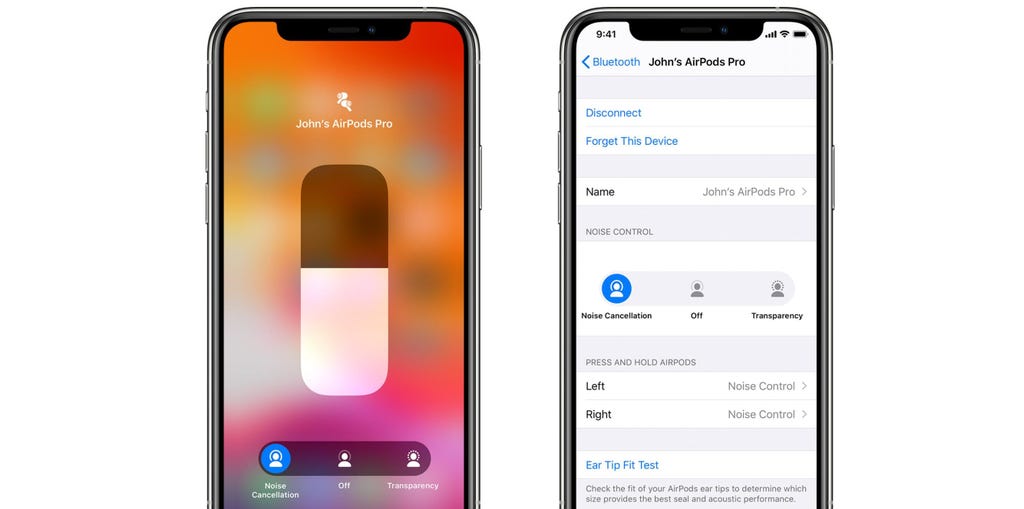
AirPods, and other Apple earbuds and headphones, have two main noise canceling modes. Some models have a third. Active Noise Cancellation uses microphones built into the earbuds/headphones to listen to the world around you. The headphones then process this sound and create frequencies that cancel out the "real" frequencies, which reduces overall noise. It works best with steady, lower-frequency sounds like engine noises and less well with higher frequency sounds like voices.
The other two modes are called Transparency mode and Adaptive Audio. More on these below.
Apple
What is Transparency mode?
Transparency mode is essentially the opposite of noise canceling. It uses the same microphones built into your headphones and earbuds, but instead of using them to determine what frequencies of sound to cancel, it amplifies them so you can better hear the world around you. It's good for a quick conversation or when you want to be more aware of your surroundings.
For more info, check out Transparency Mode Lets You Hear the World Around You When Using Noise-Canceling Headphones.
What does Adaptive Audio mean on AirPods?
Certain models, like the most recent versions of the AirPods, AirPods Pro and Max, have a third noise canceling mode called Adaptive Audio. It combines Active Noise Cancellation and Transparency modes to give you an adjustable amount of ambient sound depending on your environment. As in, it will let in some sound so you can be aware of your surroundings but still have the overall sound reduced compared to removing your earbuds entirely.
For more info about Adaptive Audio, check out AirPods Getting a Cool New Feature.