

 Search

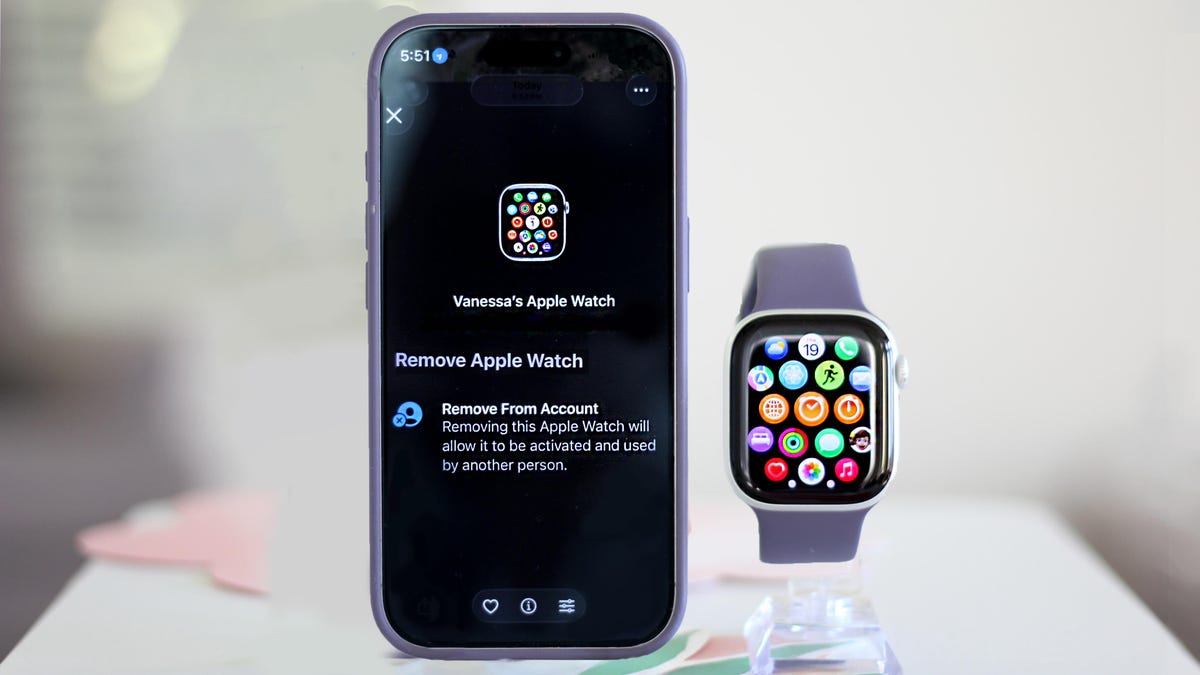
It's out with the old and in with your shiny new Apple Watch. One of the biggest perks of staying within the Apple ecosystem is how seamless switching between devices is. While pairing a new Apple Watch is truly simple, unpairing your old watch can trip people up. Skip a step, and you might not fully release the old one, potentially locking out the next owner. Learn from my mistakes on this one and review your options before you begin. Before you get started on your new Apple Watch, there are a few things we need to take care of on your old watch.
Unintended bonus: if you've been having connectivity issues, going through these steps might fix those, too.
First: Back up your data
Your Apple Watch backs up automatically to your iPhone whenever both devices are on, paired and in range. It also backs up automatically if you use Method 1 below. The backup includes app settings, watch face customizations, Health and Fitness data, and apps.
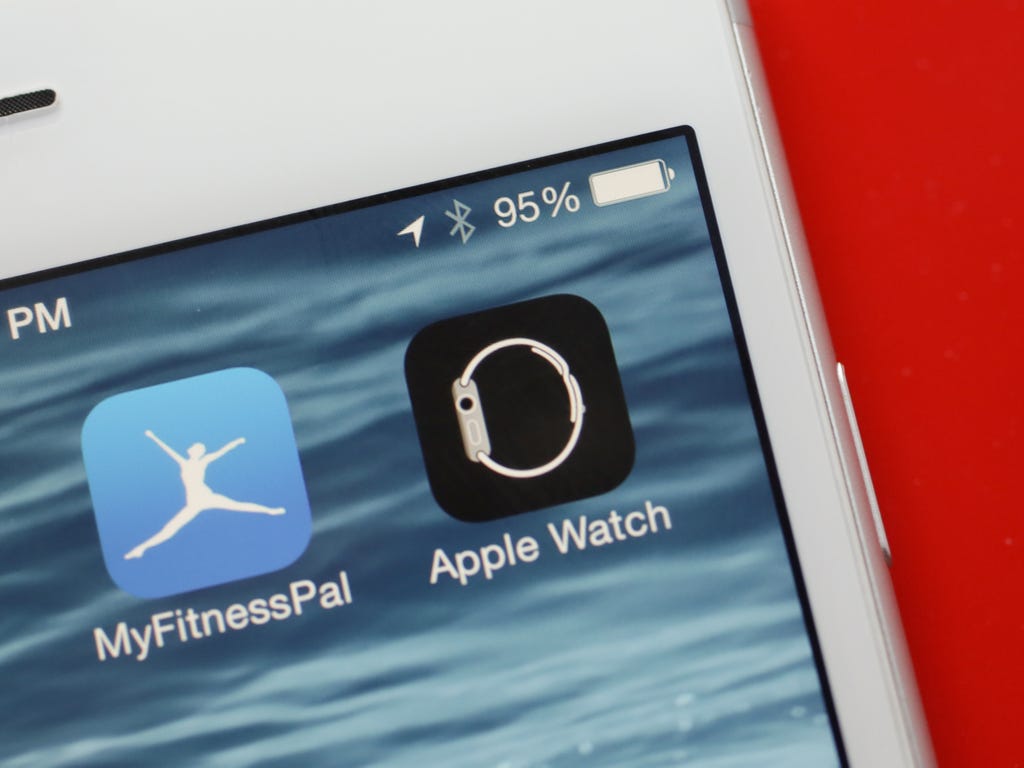
The easiest way to unpair the Apple Watch and reset it is through the Apple Watch app on your iPhone. Sarah Tew/CNET
Method 1: The right way (requires both your watch and iPhone)
There are three ways to unpair your Apple Watch, but this one's the best, especially if you're passing the watch along to someone else. All of them will require your watch to have at least 50% battery, so you might want a charger nearby just in case.
Method 1 backs up your watch, removes your content, unpairs the device and clears Activation Lock in one go.
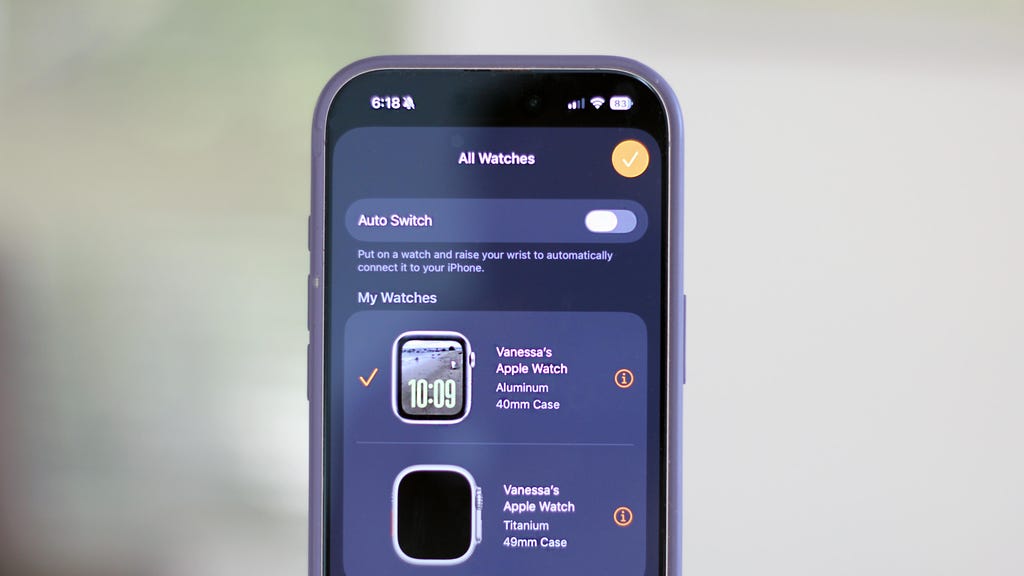
Select the Apple Watch you want to remove from your account. Vanessa Hand Orellana/CNET
Open the Watch app on your iPhone and tap All Watches at the top. Find your watch, tap the i icon, and then scroll down to Unpair Apple Watch.
If you have a cellular model with an active plan, you'll be asked whether to keep or remove it. Only keep the plan if you're pairing this same watch to your phone again. Otherwise, remove it, then set up the plan on your new watch during its setup.
Tap Unpair again to confirm, then enter your Apple ID password. You'll see an Unpairing Apple Watch message on your phone and a spinning wheel on your watch. Then wait patiently until it's unpaired. The watch will reboot and show the Apple logo when it's done.
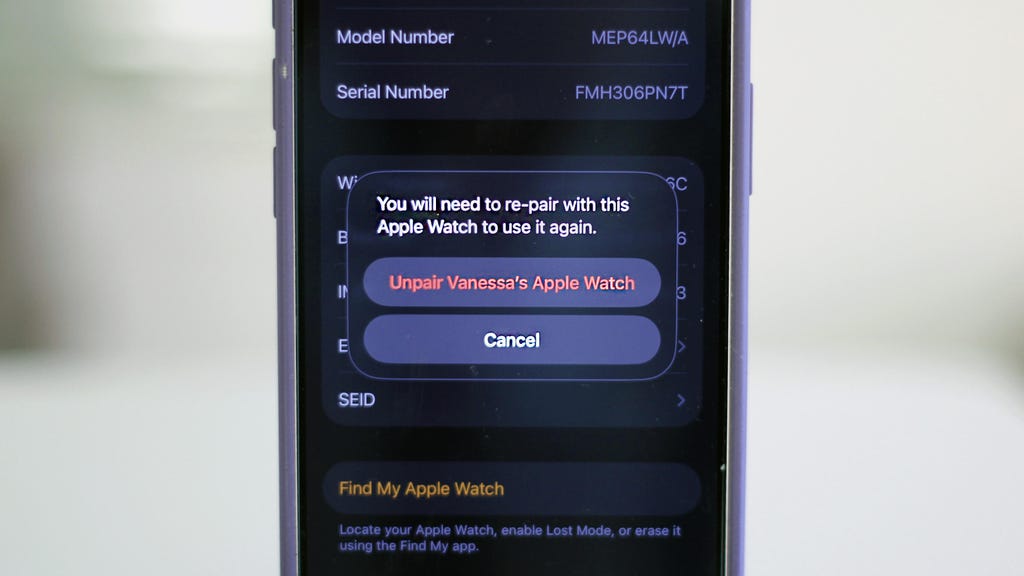
This step will erase your old Apple Watch and remove it from your account. Vanessa Hand Orellana/CNET
While you wait, you can confirm that the smartwatch is off your account by opening the Find My app on your phone and checking that said watch is nowhere to be seen on the device list. If it's gone, you're fully clear.
Method 2: If you don't have your watch with you
You can also unpair it remotely in iCloud if you forgot to unpair before handing it off to someone else, or if it was lost or stolen.
To do so, log in to the iCloud website on your desktop and open the Find My app (bottom left). You can also do this from the same app on your phone. Locate your Apple Watch in your device list, click on it, scroll down and press Erase, then Next. Enter your Apple ID password to confirm. While you'll no longer be able to track it, you can leave a callback number and a message on the screen in case someone finds it and powers it back on.
Method 3 (last resort): Resetting directly on the watch
Only use this if you don't have your paired iPhone on hand. On your watch, go to Settings, then General, then scroll down to Erase All Content and Settings.
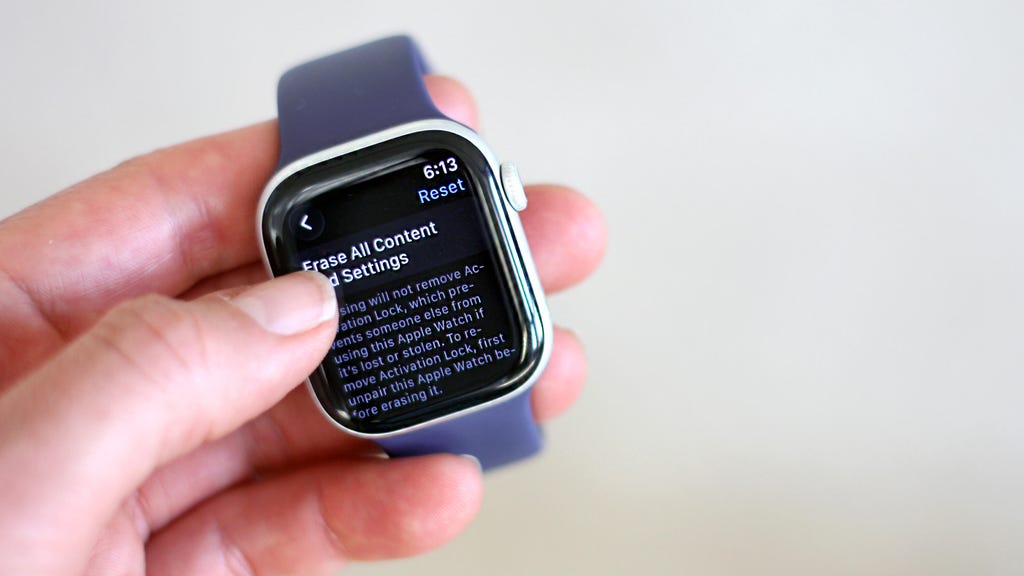
You'll still have to unpair the Apple Watch from your account after you erase settings. Vanessa Hand Orellana/CNET
This will wipe the watch and restore factory settings, but it won't create a backup, and it won't remove Activation Lock. This means whoever you're giving the watch to will still need your Apple ID password to activate it, or you'll need to remove it remotely after the fact using Method 2.
Pairing your new Apple Watch
Now it's time to unpack your new Apple smartwatch. Make sure both your new watch and iPhone are nearby and in range of each other. Most new Apple Watches come with at least 50% charge, but have the charger handy just in case.
Press and hold the side button to turn the watch on. You'll see the Apple logo, and a pairing screen should automatically pop up on your iPhone. Tap Continue. Now choose whether you're setting this up for yourself or a family member. If you don't see it, open the Watch app on the iPhone and tap Start Pairing. It's easiest if the watch is already on your wrist.
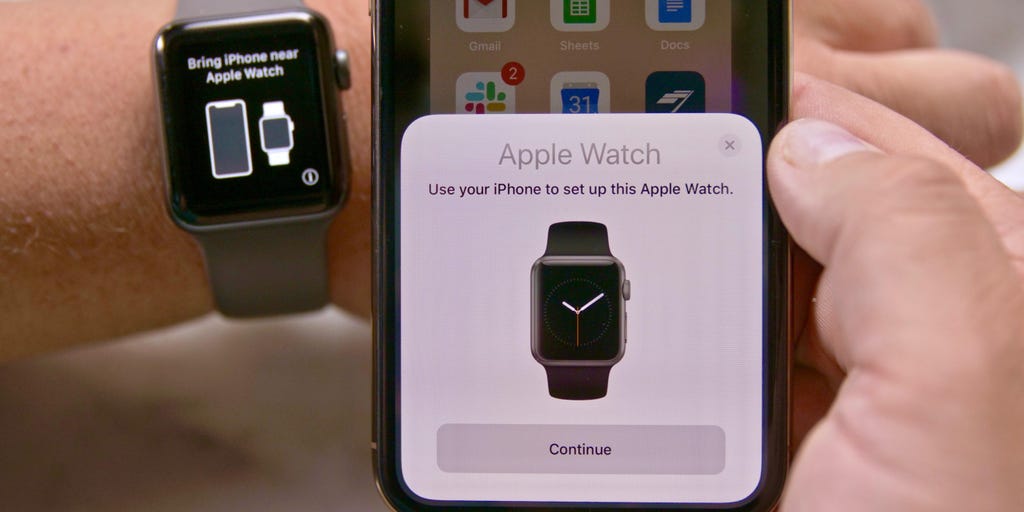
You'll need your phone and Apple Watch in range for pairing. John Kim/CNET
A circle of swirling blue specks will appear on your watch screen. Hold your iPhone up to it so the watch is in the camera viewfinder, and the two devices will do their thing.
Tap Set Up Apple Watch and follow the prompts. At this point, you can restore a backup from your previous watch.
If you can't use the camera, tap Pair Apple Watch Manually at the bottom of your screen. When the blue particle pattern appears, tap the Info (the letter I) icon on your watch to get a six-digit code. Type it into your iPhone when prompted, and your smartwatch will be fully paired.
Activate cellular service
Once setup is complete, activate cellular if your watch supports it and you want to transfer your account, or set one up (assuming your carrier supports it). You can also skip this step and keep it to Wi-Fi only, even if you have a cellular model of the watch.